
If your internet keeps dropping at the worst possible moment, you’re not alone. This guide delivers a clear, step-by-step approach to diagnosing and fixing unstable connections—whether you’re dealing with slow speeds, random disconnects, or a complete outage. We focus on practical, fast wi-fi connectivity troubleshooting that moves from simple fixes to more advanced solutions, so you can restore stability without guesswork. Built from years of hands-on experience resolving thousands of network and device issues, this checklist is designed to help you pinpoint the problem quickly and get back online in minutes—no support call required.
Start Here: The 5-Minute Fixes for Common Glitches
Just as online communities rally together to tackle larger issues—like those discussed in “From Memes to Movements: How Online Communities Influence Real-World Change“—understanding the nuances of Wi-Fi connectivity issues can empower you to connect effortlessly in both the digital and physical worlds.
Before you panic, start simple. Option A: Tinker with advanced settings. Option B: Reboot your device. In most cases, B wins. A restart clears temporary software conflicts—small memory glitches where apps or background processes get “stuck” and block connectivity. It’s the digital equivalent of telling everyone to leave the room and come back in calm (yes, it’s that basic).
Next, compare refreshing your browser vs. power cycling your network gear. If multiple devices are offline, the issue likely isn’t your laptop—it’s your connection source. Follow the 30-30-30 rule: unplug both modem and router for 30 seconds, plug in the modem and wait 30 seconds, then plug in the router and wait another 30. This forces a clean handshake with your internet provider (think of it as reintroducing two awkward coworkers properly).
Still stuck? Test distance. Far from router vs. standing next to it quickly reveals signal degradation caused by walls or appliances.
Finally, make your device “forget” the network, then reconnect by re-entering the password. This fixes corrupted connection profiles—a common culprit in wi-fi connectivity troubleshooting.
Start simple. Advanced fixes can wait.
Isolating the Source: Is It Your Device, Your Router, or Your ISP?
When your internet drops, it’s tempting to blame “the Wi-Fi” (as if it’s a single magical thing). But smart wi-fi connectivity troubleshooting starts by isolating the source.
The Multi-Device Test
This is your fastest diagnostic move. Check whether other devices—your phone, laptop, or smart TV—can connect.
- If only one device fails, the issue is likely local (settings, drivers, or hardware).
- If all devices struggle, the problem is probably your router or ISP.
For example, if your laptop won’t connect but your phone streams Netflix just fine, you’re dealing with a device-specific issue—not a full network outage.
Read the Router Lights
Your router and modem communicate through status lights. They’re not decoration.
- Power: Should be solid.
- Send/Receive: Blinking usually means data transfer.
- Online: Confirms ISP connection.
- Wi-Fi: Indicates wireless broadcasting.
A red or blinking orange light often signals a failure to connect to your provider. Think of it as your router waving a tiny red flag.
Run a Speed Test (If You Can Connect)
If you have partial access, visit a speed test site. Look for:
- Extremely slow download/upload speeds
- High ping (delay in milliseconds)
- High jitter (variation in delay)
High ping or jitter can make Zoom calls freeze even if pages load.
Check for a Service Outage
Before resetting everything, check your ISP’s website or a service like Downdetector. If there’s an outage, no amount of unplugging will fix it (save yourself the frustration).
Diving Deeper: Advanced Tweaks for a More Stable Connection
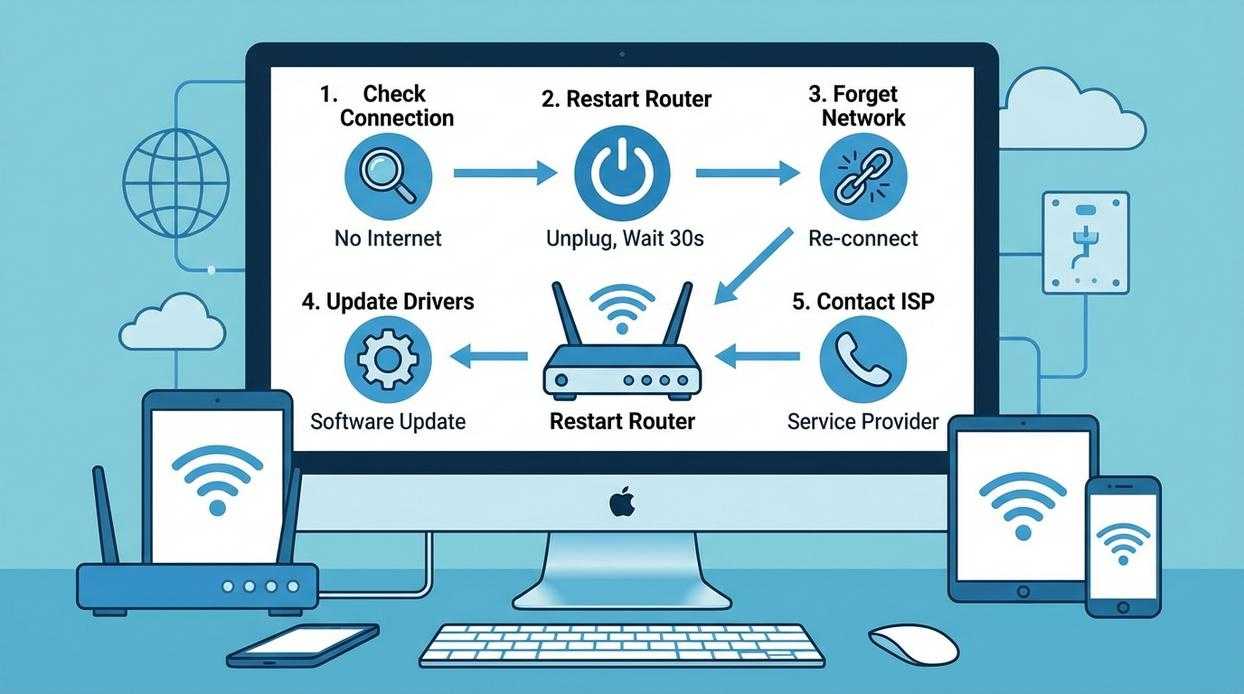
If your internet still drops after basic fixes, these advanced tweaks can deliver faster speeds, fewer disconnects, and better overall performance (yes, even during your 4K streaming marathon).
Change Your Wi-Fi Channel
Think of Wi-Fi channels like highway lanes. If everyone’s crammed into one lane, traffic slows. The 2.4GHz band has 11 channels, but only 1, 6, and 11 don’t overlap. Log into your router’s admin panel (usually by typing 192.168.1.1 into your browser), enter your credentials, and find the Wireless Settings section. Use a Wi-Fi Analyzer app to see which channel is least crowded, then switch to it. The benefit? Less interference and smoother browsing, especially in apartments.
Update Your Router’s Firmware
Firmware is your router’s built-in software. Updates often patch security flaws and improve stability (manufacturers regularly fix vulnerabilities, according to CISA advisories). In your admin panel, look for “Firmware Update” or “Administration.” Check for updates and install if available. This simple step boosts security, speed, and reliability—a win across the board.
Update Your Device’s Network Drivers
Outdated drivers can quietly sabotage performance. On Windows, open Device Manager > Network Adapters. On Mac, check System Information > Network. Identify your adapter model and download the latest driver from the manufacturer’s site. Updated drivers mean fewer random drops and better compatibility.
Eliminate Physical Interference
Microwaves, cordless phones, Bluetooth speakers, and baby monitors all emit radio frequencies. Move your router away from them. Even a few feet can improve signal strength.
These steps elevate your wi-fi connectivity troubleshooting game—and the payoff is a connection that just works. For mobile-specific fixes, see common smartphone problems and how to solve them.
Your Last Resort: When and How to Call Your Internet Provider
Sometimes the issue isn’t your setup. If multiple devices fail, router lights flash red, and an outage is confirmed, the fault is likely external. Some argue you should keep trying wi-fi connectivity troubleshooting to avoid long hold times. Fair. Reboots fix many glitches. But endless tinkering wastes hours (and patience).
Before calling, gather:
- Account number
- Modem/router model
- Steps already taken
Support moves faster when you’re prepared—like handing a mechanic the full symptom list. Pro tip: document error messages verbatim. It shortens the script-reading phase and gets you to real solutions faster resolution.
Building a Permanently Reliable Home Network
You set out to fix frustrating dropouts and finally make your connection dependable—and now you have a clear, repeatable system to do exactly that. Instead of guessing, you can approach wi-fi connectivity troubleshooting step by step, eliminating the most common causes before moving to advanced fixes. That means no more wasted hours, no more random resets, and no more interruptions during work or streaming.
Unstable internet is more than annoying—it disrupts productivity and peace of mind. Don’t let it keep costing you time. Bookmark this checklist now and use it the moment issues appear. Follow the process, restore your connection fast, and stay reliably online.